End-User Interface
This guide walks you through the screens an end-user sees on their workstation when UpgradeMate offers an upgrade — from the initial form to the final progress screen during installation. All screens are automatically displayed in the language of the user’s operating system.
Video Tutorial
Requirements
- The device must be enrolled in the UpgradeMate workflow (added to
02.Scan PreCache Content) and must have passed the scan stage.
Step-by-Step Guide
The Upgrade Form
Once a device passes the scan stage, the upgrade form appears on top of all other windows and asks the user to choose how to proceed. The form requires user interaction; it cannot be manually dismissed and closes automatically after the timeout configured in the wizard.
The form is displayed with the Company Name, IT Department Name, and Company Logo defined during the Initial Configuration. A countdown in the top-right corner shows the time before the form auto-closes.
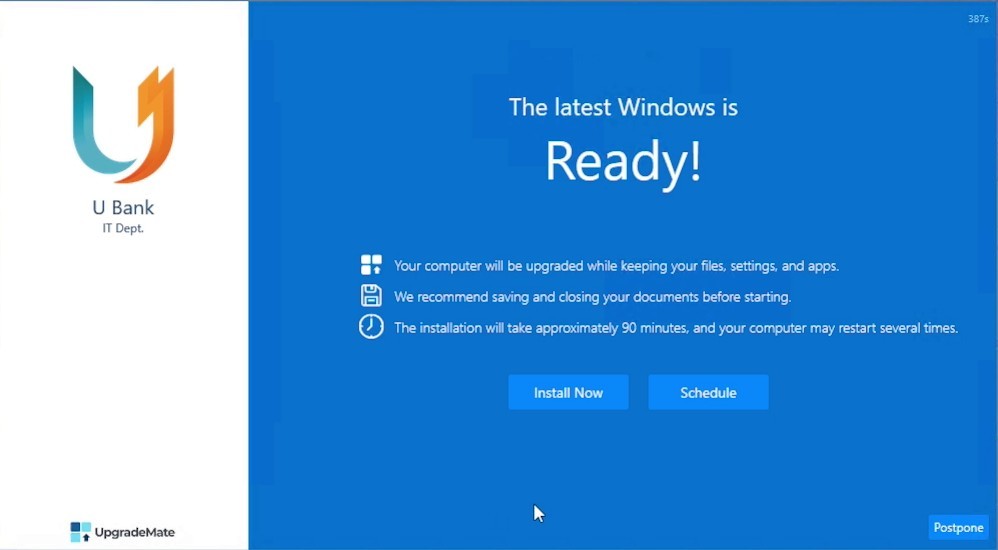
The user has three choices:
- Install Now — start the installation immediately.
- Schedule — pick any time within the next 24 hours. The installation then proceeds automatically at the chosen time, as long as the computer is on. If the computer is off at that time, the form reappears the following day.
- Postpone — postpone the form. The Postpone button is intentionally disabled for the first few seconds (default 15) to make sure the user reads the message.
The Schedule and Postpone options are only available during the Days to Force Upgrade window set in the wizard (default 5 days). After this period the user only sees the Install Now option.
Starting the Installation
When the user clicks Install Now, the form switches to a countdown screen. This is the user’s last chance to save their work before the installation locks the screen.
The countdown screen tells the user the installation is about to begin and reminds them to save and close any open applications and files.
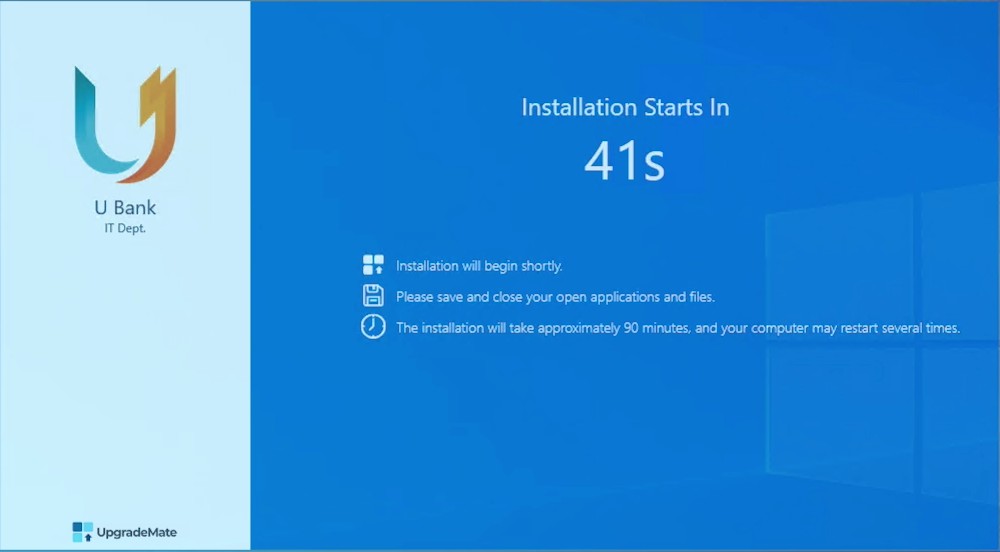
The countdown form can be moved to the background so the user can switch to their open applications and close them safely.
Tip for users: Save and close all your documents while the countdown is running. Once the installation begins the screen is locked and you will not be able to use the computer until the upgrade finishes.
Installation in Progress
Once the countdown ends, the installation begins and the screen is locked. The user cannot use the computer until the upgrade completes. The screen shows the company logo and IT department name, the current status, and a progress bar.
The screen displays the upgrade status in the centre and a green progress bar at the bottom that includes the percentage complete and the elapsed time.
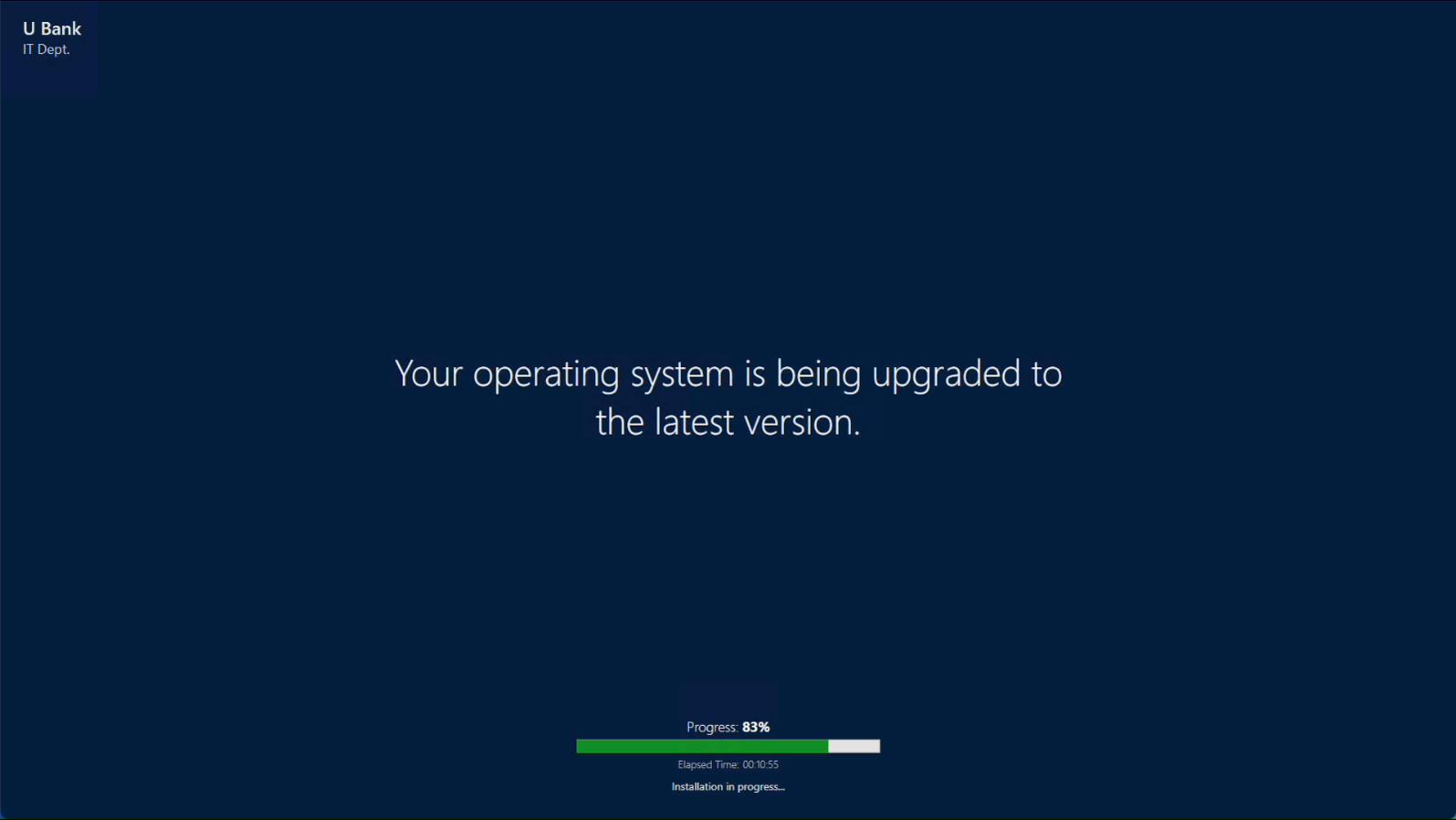
The installation continues automatically. The computer may restart several times during the upgrade.
Important: Do not turn off the computer during the upgrade. Once the operating system restarts for the last time, the user can sign in and resume using the computer as usual.
That is the complete user experience — from the first prompt to a fully upgraded system.